Your dashboard, as a conversation.
One switch turns PunchClock into an assistant that knows your team. Ask in plain English, get the answer from your live punches, rotas, leave and payroll, and tell it to fix what it finds.
Good morning, welcome to your workspace
Tuesday, 27 OctoberNeeds Your Attention
Recent Activity
Emily Watson clocked in · 07:58
Luis Herrera started break · 10:15
A demo with an example company. In your account, every answer comes from your own records.
Six screens, or one sentence.
Three people forgot to clock out last night. Here is the same fix, done both ways.
- Open Live and change the date to yesterday
- Work out who is still showing as clocked in
- Open the first person’s timesheet
- Add the missing clock-out and save
- Repeat for the next two people
- Go back and check nobody was missed
Done. All three clocked out at 17:00, and their hours and pay are updated.
Your day, before your coffee.
Press Summary when you sit down and PunchClock gives you the morning in a few lines: who is in, who is late, what is waiting for you.
- Clocked in, late and on break, counted for you
- Leave requests waiting for a decision
- Anything that needs fixing, like a missing clock-out
Good morning. 9 of 11 staff are in. A. Richards clocked in 19 minutes late. One person is on break.
Waiting for you: 2 leave requests, and 2 missing clock-outs from Sunday.
Maria González worked 10 days and was late once, on Tuesday 21st, by 6 minutes. Her last clock-in was today at 06:58 at Main Restaurant.
Ask about anyone, any day.
Lateness, absences, hours and overtime for one person or the whole team, for today or any date range.
- Who was late, and how many times this month
- Who is over 40 or 44 hours this week
- Hours, days worked and times late for any pay period
- Absences by person, month or year
Correct punches in one go.
Tell it what should have happened and it sets the times, for one person or many, once you confirm.
- Clock out everyone still clocked in, at a time you choose
- Fix a single punch: “Luis came in at 7, not 7:30”
- Fill a week of times for one person
- Every change marked AI Adjusted on the timesheet
Updated. Luis now shows in at 07:00, and today’s hours are recalculated.
Snap the paper sheet. Skip the typing.
A supervisor hands you a handwritten timesheet. Drop a photo into AI Mode and it reads the names, days and times into a table you can check and correct. Save, and the punches are in, each one marked as entered by the AI.
| Name | Shift |
|---|---|
| James Carter | 16:00–00:00 |
| Emily Watson | 18:00–00:00 |
Shift added and the rota is published.
Build next week by chatting.
Look up who is on, add or remove shifts, copy a good week forward and publish the rota, without opening the planner.
- Who is on the rota at any site, any day
- Add or delete a shift for anyone
- Copy this week to next week
- Publish the rota so staff see it
Staff records, by request.
Find anyone, add a new starter, change a rate or bank details, or switch off someone who has left. You can even set a profile photo by dropping it into the chat.
- Look up contact details, job and department
- Add a new employee with their job and rate
- Update pay rate, salary, bank details or tax setting
- Deactivate a leaver, and set profile photos from the chat
Kevin Joseph has been added. His clock-in PIN is 40871.
| September | Employee | Employer |
|---|---|---|
| Social security | $2,418.30 | $2,102.90 |
| Levy | $1,261.70 | $1,261.70 |
Across 38 staff and 2 pay runs.
The payroll answers HR gets asked.
Pay runs, gross and net, deductions, overtime and sick pay from your committed payroll, plus social security and levy totals.
- Totals for any pay run, or one person’s pay history
- Social security, levy and medical by employee
- Pay dates from your pay calendar
- Time in lieu built up against contracted hours
Any report, as Excel, in one sentence.
Ask for the report you need and a download appears in the chat, ready to send to your accountant.
- Employee list
- Weekly schedule
- Timesheet hours for any dates
- Absences and leave
- Payroll summary
- Every punch, in detail
- Time in lieu
Here are everyone’s hours for 1–30 September.
Go to Settings, then Holiday Pay. Click Add Holiday, pick the date and name it, then click Save. Staff working that day are paid at your holiday rate.
Ask it once. Keep it for next time.
Save the questions you ask every week. They sit under the chat, one click away, along with a help guide for any screen in PunchClock.
- Save any question to your favourites
- Run it again with one click
- Ask how to do anything in PunchClock and get the steps
If HR asks it, you can ask PunchClock.
A sample of real questions, grouped by what you are trying to do. Type them the way you would say them.
Attendance
- Who’s clocked in?
- Who was late today?
- Who’s on break?
- Who was absent last week?
- Summary of today
Hours and overtime
- Who worked more than 44 hours this week?
- Maria’s hours this pay period
- Time in lieu for John
- Hours by person for October
Fixing time
- Clock out everyone still in at 5pm
- Luis came in at 7, not 7:30
- Enter this paper timesheet
- Fill in last week for Carlos
Rotas
- Who’s on tomorrow?
- Add a shift for Luis on Friday, 7 to 3
- Copy this week to next week
- Publish the rota
Leave
- Any pending leave requests?
- Approve Kevin’s leave
- Record a sick day for Ana on Monday
- Who’s off next week?
People
- Find Sofia’s phone number
- Add a new line cook at $15 an hour
- Change Maria’s rate to $16
- Deactivate James Carter
Payroll
- Totals for the last pay run
- When is the next pay date?
- Social security and levy for September
- Email everyone their payslip
Reports and help
- Export last month’s timesheet
- Download the schedule
- Export the employee list
- How do I run payroll?
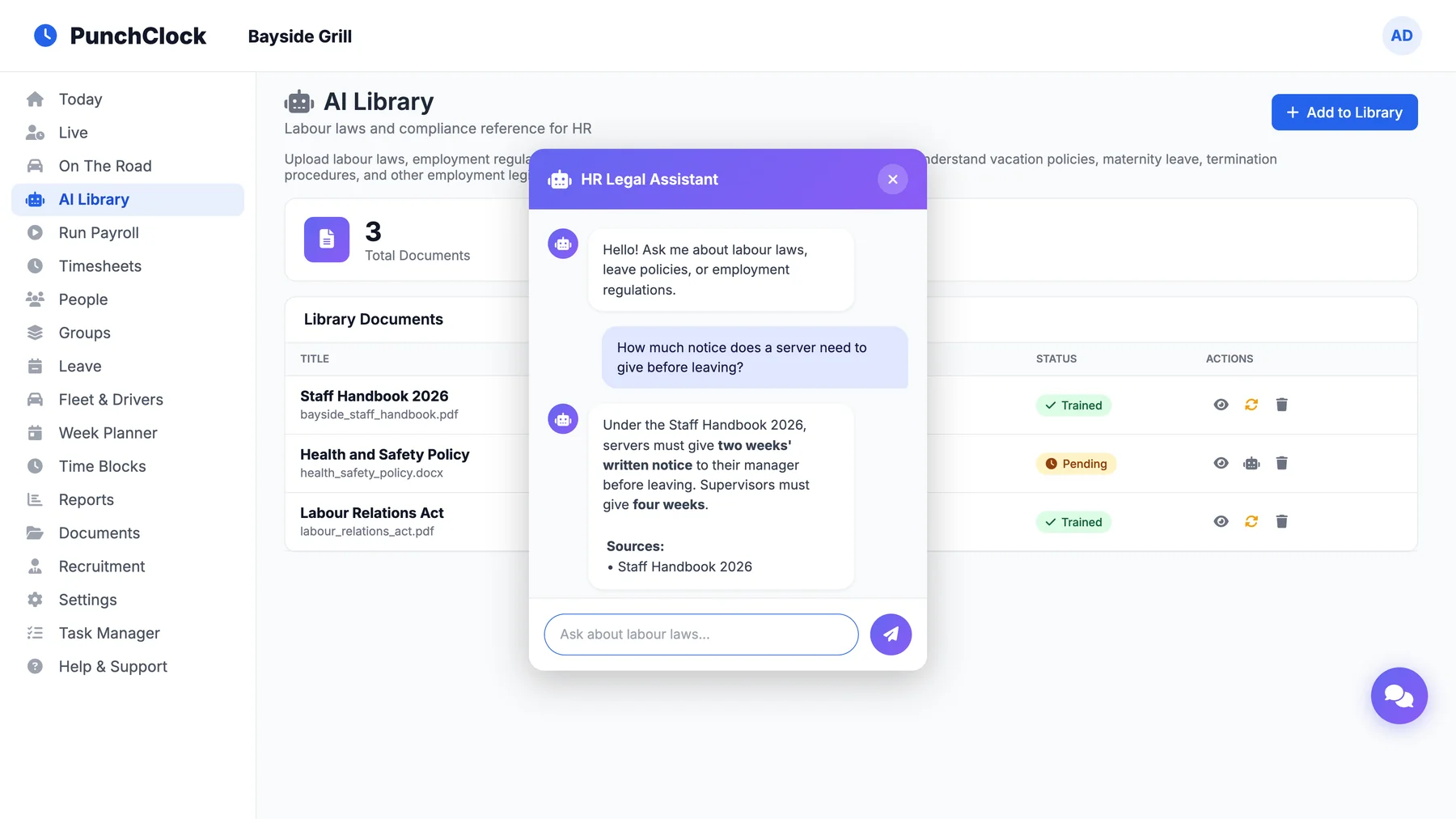
And ask your own handbook.
Upload your staff handbook, policies and the labour law you work under. The HR assistant answers from those documents only, and names the ones it used, so you can open them and check.
Smart, and on a short lead.
Only your company
Every answer is drawn from your own account. It never sees another customer’s data.
Waits for your yes
Clock times, leave, rotas, staff records and payslip emails all wait for you to confirm.
Every change logged
Each change records who asked and when, and punches it sets are marked AI Adjusted.
Follows your roles
Users on basic HR access can ask about attendance, but cannot see pay or make changes.
Before you switch it on.
Where do I find AI Mode?
Click AI Mode at the top of your Today screen to switch the dashboard into the AI workspace, and Classic to switch back. A chat button also sits in the corner of every dashboard page.
Can it change my data without asking?
No. Anything that changes a record, such as clock times, leave, rotas, staff details or payslip emails, is set out first and waits for you to reply yes.
Can it see other companies’ data?
No. It only ever works with your own company’s account.
Who in my team can use it?
Dashboard users. Users on basic HR access can ask about attendance, but cannot see pay or make changes.
Is every change recorded?
Yes. Each change is logged with who asked and when, and punches it sets are marked AI Adjusted on the timesheet.
Can it read our handbook?
Upload your handbook, policies and labour law to the AI Library and the HR assistant there answers from those documents, naming the ones it used.