Clock in only where the work is.
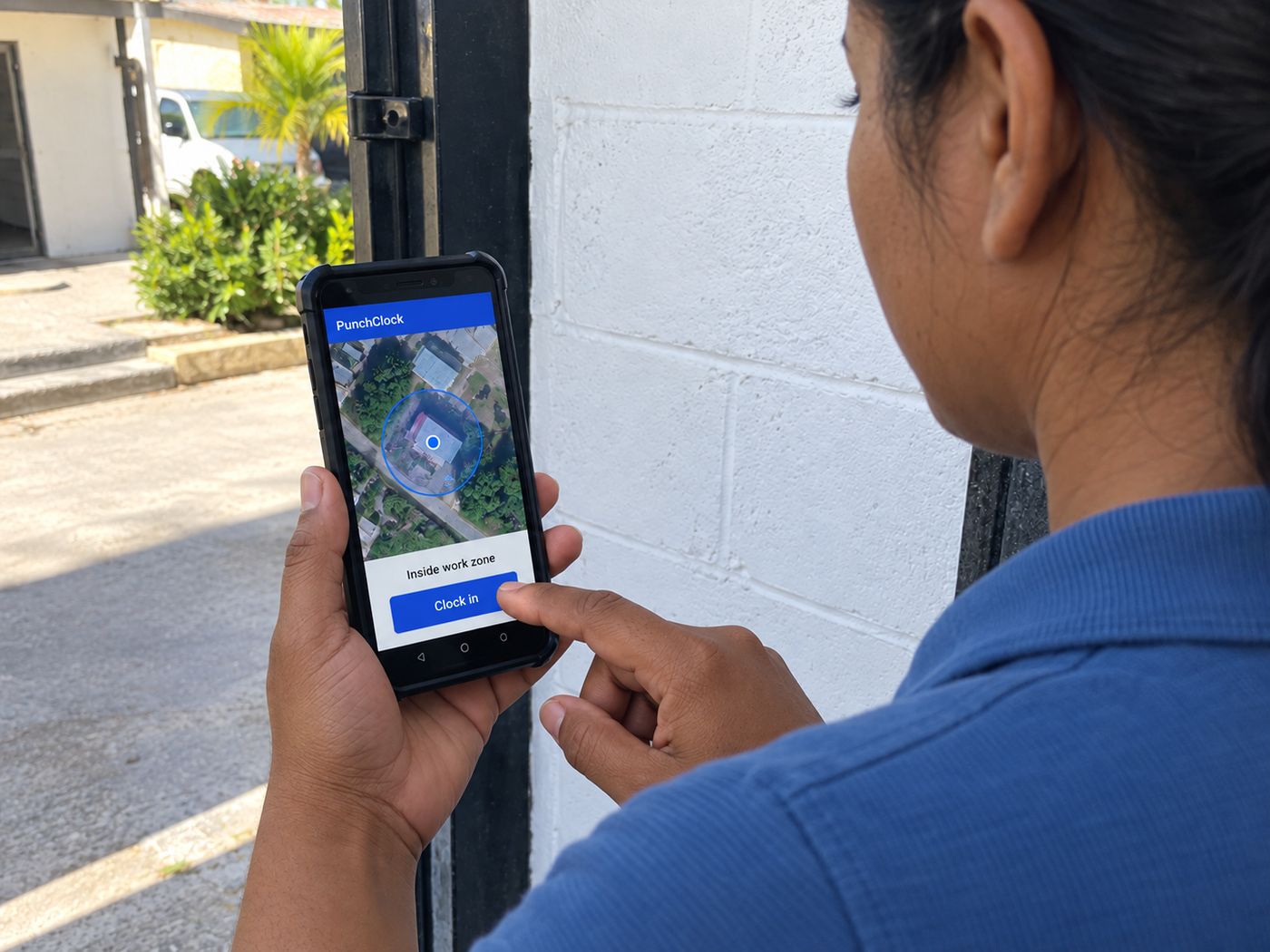
Draw a circle around each site. Staff punch from the PunchClock app, and the punch only counts when a fresh GPS fix puts their phone inside it.
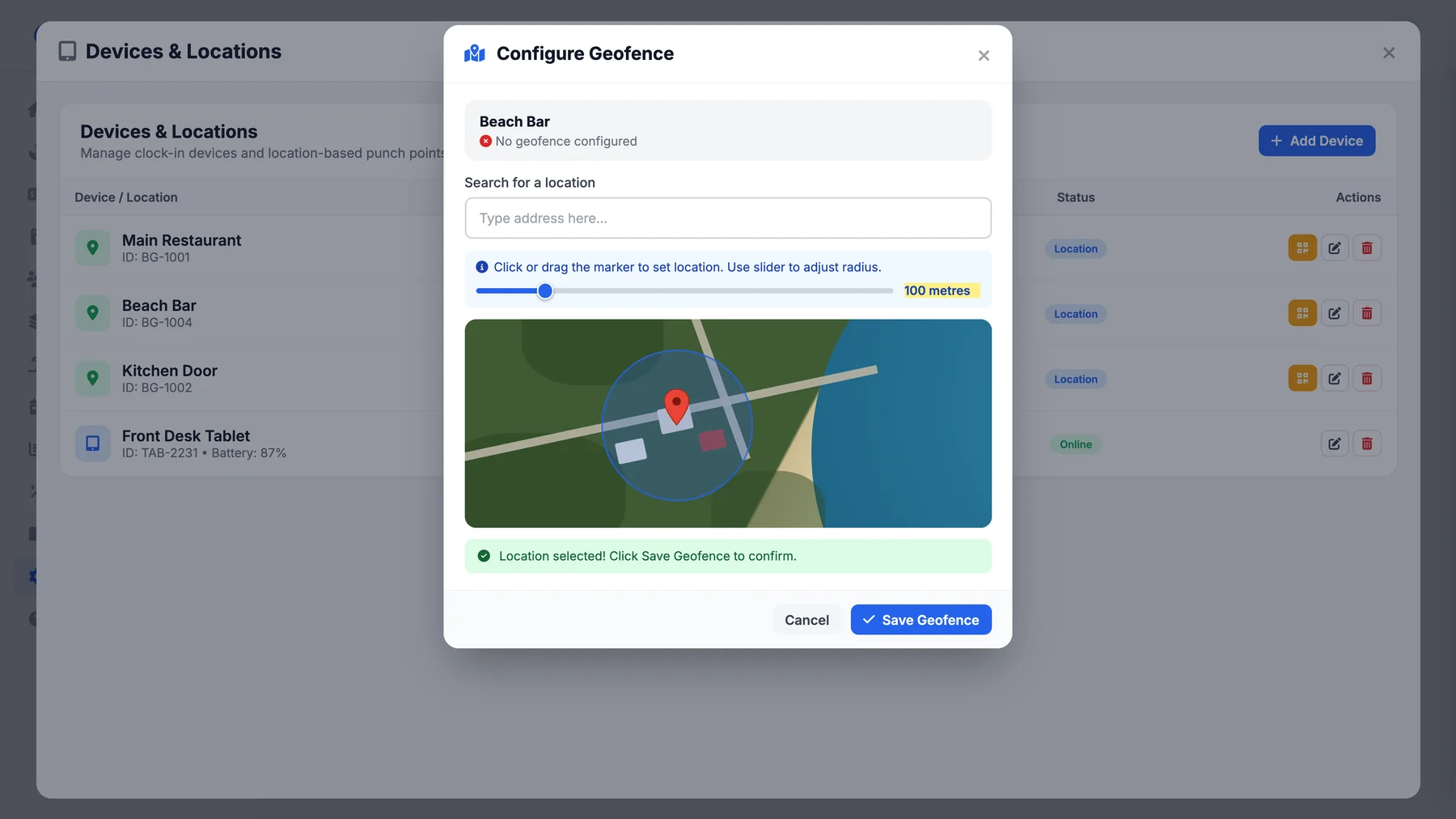
Three steps, and the server has the final say.
Draw the zone
In Settings, search the address, drop the pin on the exact spot and slide the circle from 20 to 500 metres.
Staff tap Punch In
The app lists your sites nearest first and greys out any that look out of range. Tap Map to see the zone and where you are.
A fresh fix decides
The phone takes a new GPS reading. Inside the circle, the punch is saved against that site. Outside, it is refused with a message.
Built for people on the move.
Staff log in once with their PIN and stay logged in. Every punch takes seconds and tells them straight away if it went through.
- Nearest sites firstThe list starts with the closest location, so the right one is at the top.
- Out of range, greyed outSites that look too far away are dimmed before anyone taps them.
- A map of the zoneTap Map to see the site’s circle and your own position on it.
- A fresh GPS fixThe phone takes a recent, accurate reading at the moment of the punch, not an old one.
- Clear answersSuccess shows the name, date, time and Clocked In or Clocked Out. Outside the zone: “You are not within the selected location.”
The whole team on one map.
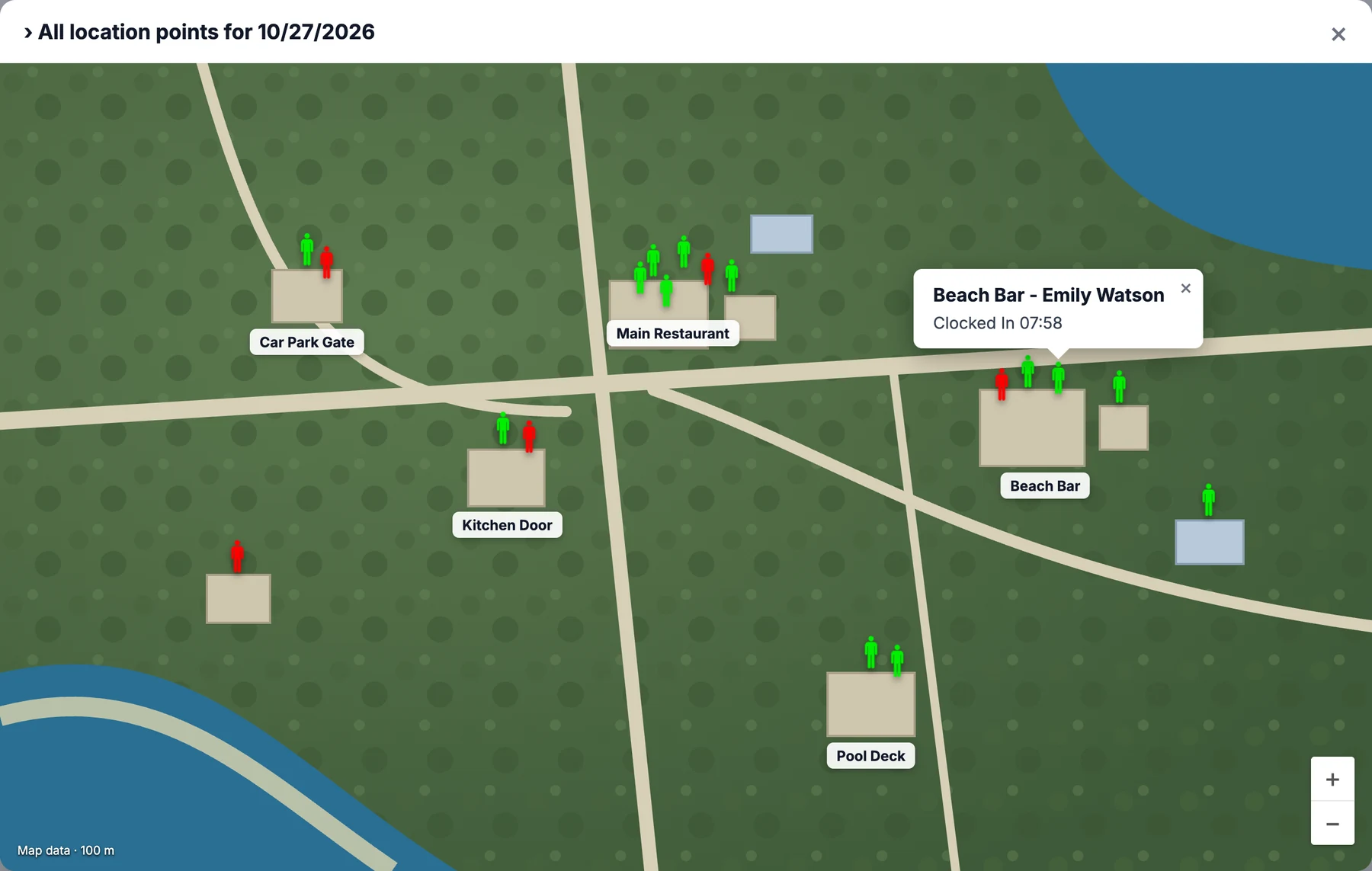
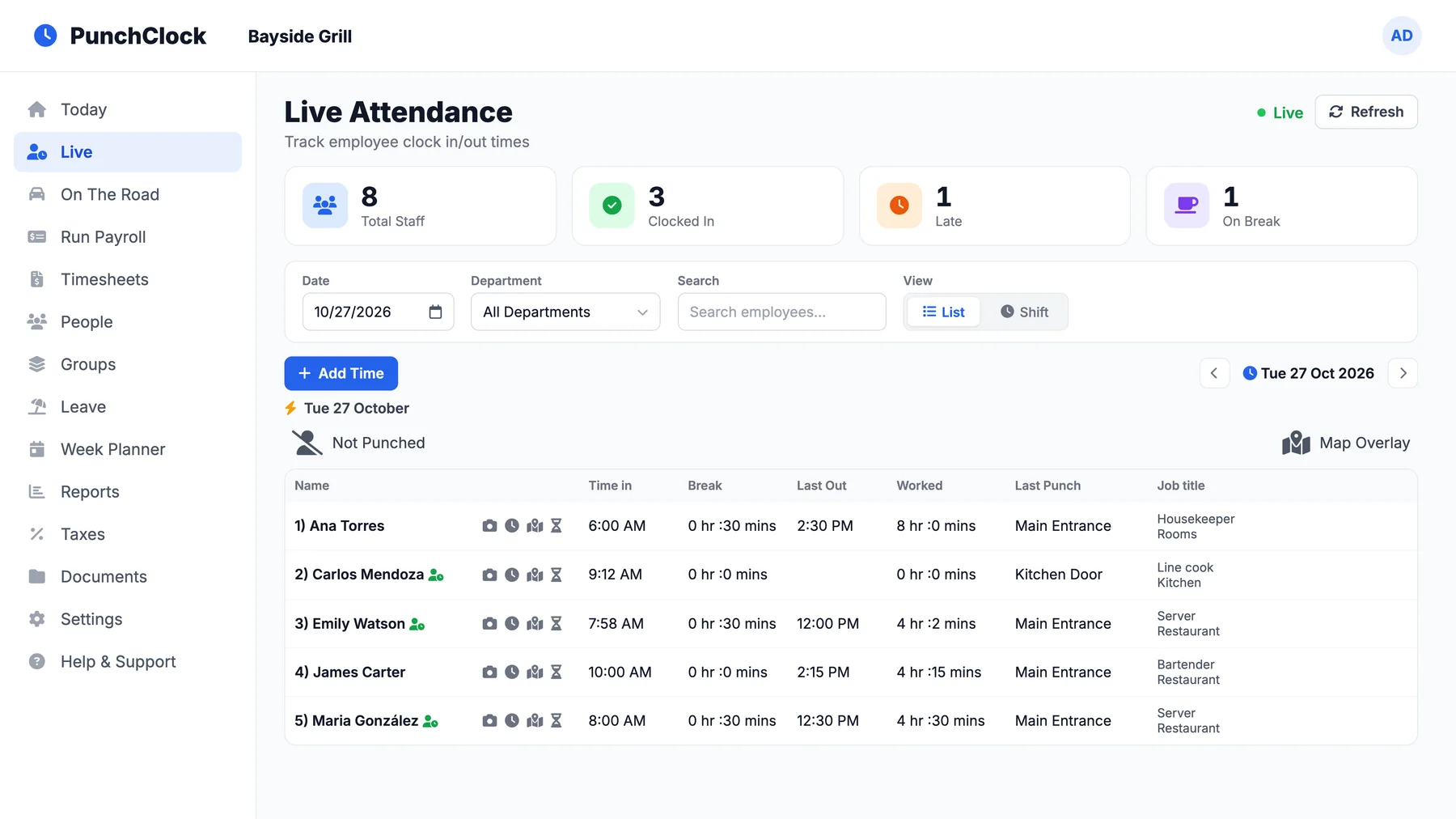
Open Live and click Map Overlay. Everyone who punched that day appears as a pin where they last punched: green if they are still clocked in, red once they have clocked out. Click a pin to see who it is, the site and the time.
Every punch lands with a place.
Each punch is saved against the site it was made at, so where the hours were worked is never a guess.
- Live boardWho is in, late or on break right now, as a list or by shift.
- The site on every punchOpen a punch card and each in and out shows the location it came from.
- Hours by locationSplit anyone’s hours by the site and the office they worked at.
- Pick the site when fixing timeAdding or editing a punch by hand, you choose the clock-in point too.
- Punch alertsManagers can get an alert naming the person and the site as they clock in.
Strict where it matters, flexible where it has to be.
GEO Fence Anywhere
Switch it on for a driver or a manager who works off site. They still choose a location, and the punch is saved against it, but the fence does not block them. Everyone else stays fenced.
Waypoints
Staff who are already clocked in can record a stop at a site. The GPS position is saved with it, so a day of visits leaves a trail.
Close a site, keep its history
When a site shuts, we turn it off for you. It disappears from the app and every way of punching there is refused, while its records stay.
One spot to punch? Put it on the wall.
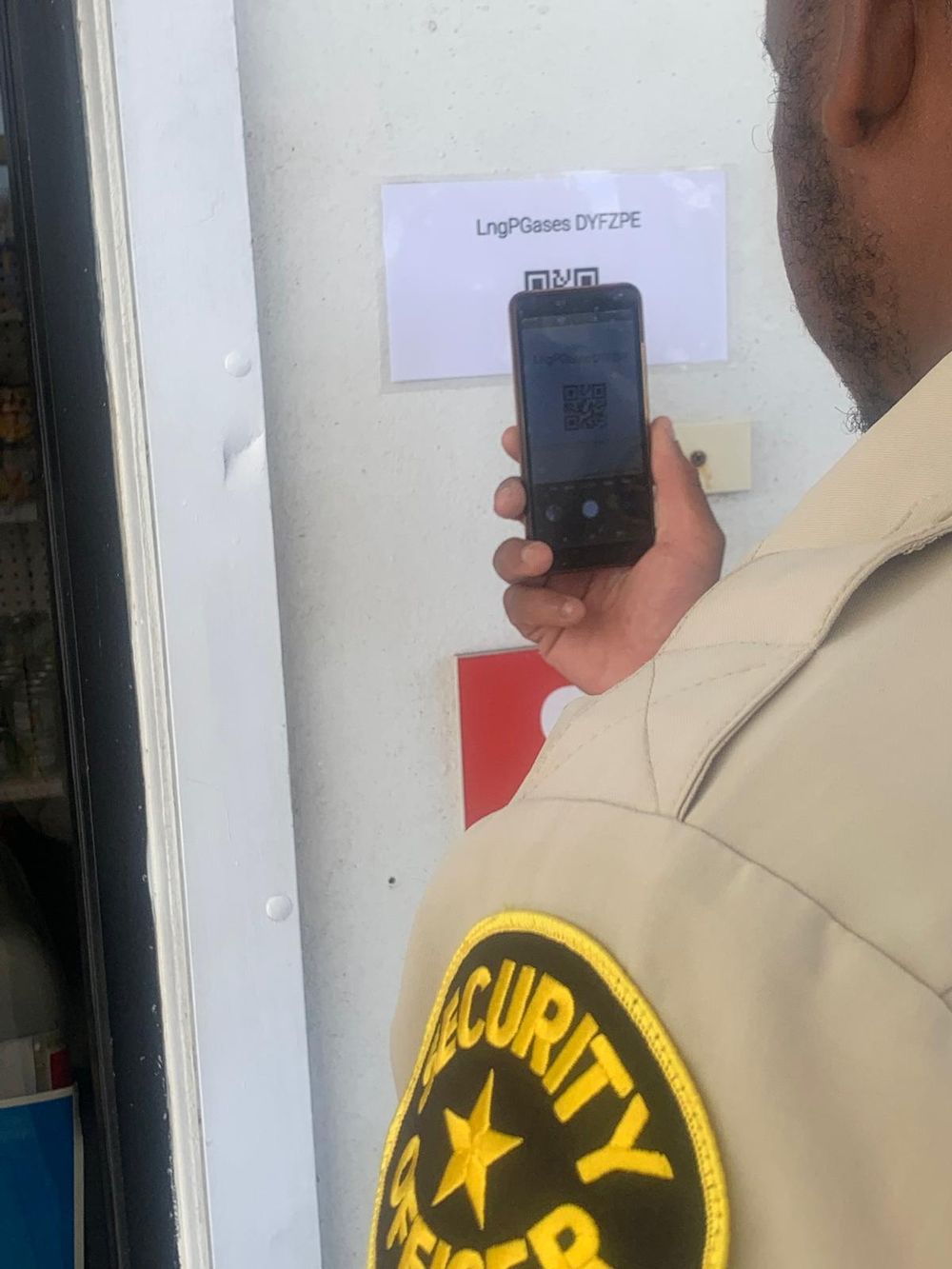
Where everyone comes to the same door, print a QR code for staff to scan in the PunchClock app, or mount a tablet that punches by face, PIN or key fob. Tablet punches keep working offline and upload when the connection is back.
Teams that move, and managers who need to know where.
Security services
Each post is a location with its own zone, so a guard’s punch shows the post they were standing at, not the car park.
Construction
Crews punch at the yard or the site they are working. Hours by location show where the time went.
Home visits
Add each client’s address as a location. Carers punch on arrival, inside that address’s zone.
Property and grounds
Staff moving between properties clock in once, then record a waypoint at each stop.