Overtime tracker for Excel
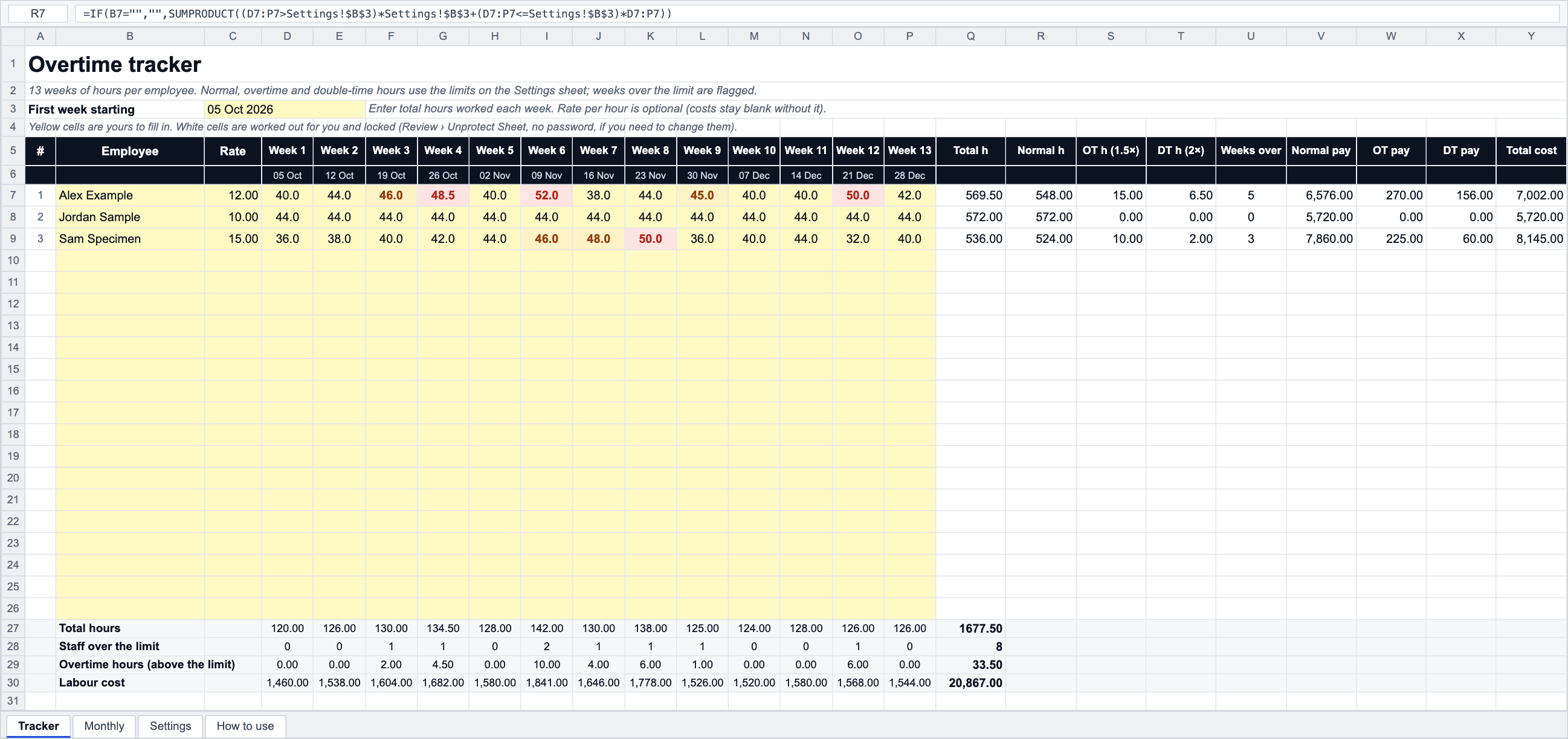
Thirteen weeks of hours for up to 20 employees. Every week is split into normal, overtime (1.5×) and double-time (2×) hours using limits you set, weeks over the limit light up, and with a rate per person you get the cost per employee, per week and per month.
- No sign-up
- Excel, Google Sheets, LibreOffice
- Formulas, no macros
- Prints on A4 or Letter
About this template
Overtime creeps up a week at a time, so a tracker that shows a quarter per person is the quickest way to see who is carrying too many hours and what it costs. Enter the hours worked each week; the sheet splits them per week (not on the 13-week total, because overtime is counted per week) into normal, time-and-a-half and double time, prices each band at the person's rate, and flags every week that passed a limit.
The limits and multipliers are on a Settings sheet and apply everywhere: 44 hours before overtime and 48 before double time by default, the same as the overtime calculator. Set 40 if that is your rule, or clear the double-time limit if everything over the first limit is paid at one rate. The file has no country rules, tax or minimum-wage figures in it.
The Monthly sheet assigns each week to the month its start date falls in, which is how most payrolls that run weekly report to a monthly budget. For what counts as overtime, what counts as unpaid overtime and how salaried staff fit in, read overtime, explained and unpaid overtime.
Background reading: Overtime, explained
How it works
- Download the file and open it in Excel, Google Sheets or LibreOffice.
- On the Tracker sheet set the First week starting date; the 13 week columns date themselves.
- Type each employee's name and, for costs, an hourly rate.
- Enter the hours worked each week. Amber = over the overtime limit, red = over the double-time limit.
- Read the per-employee columns on the right and the per-week rows underneath; open Monthly for the month view.
- Change the limits and multipliers on the Settings sheet to match your contracts.
Frequently asked questions
How does it split a week into normal, 1.5× and 2×?
Per week: normal = the hours up to the first limit; overtime = the hours between the first and second limit; double time = anything above the second limit. 48.5 hours with limits of 44 and 48 is 44 + 4 + 0.5. The per-employee columns add those per-week splits over the 13 weeks, so two 46-hour weeks give 4 overtime hours even though the average is under the limit.
Can I track more than 13 weeks or more than 20 people?
The layout is one quarter. For the next quarter copy the file (or the Tracker sheet) and change the first week date. For more people, unprotect the sheet (no password), copy the last employee row down and extend the ranges in the per-week rows.
Why is the cost blank?
Costs need an hourly rate in the Rate column; without one the sheet shows hours only. Salaried staff: use weekly salary divided by normal weekly hours as the rate.
Can I use a daily overtime rule?
Not in this tracker, which works on weekly totals. For daily overtime (over 8 hours a day, say) build the week with the time card calculator, which has a daily option, and enter the resulting weekly hours here.
Does the month view match payroll?
It matches a payroll that reports weeks by their start date. If your payroll splits a week that straddles two months by the day, the month totals will differ slightly; the 13-week totals are the same either way.
Free to download and use, including at work; no sign-up and no tracking inside the file. The template does the arithmetic with the numbers you give it: it has no tax rates and no legal limits built in, because pay, overtime and leave rules are set by each country's law and by your contract. Check anything that matters with your labour department or payroll.
Do this automatically
PunchClock applies your overtime bands to real clock-ins on every timesheet and shows the overtime cost by week, department and person without a spreadsheet.